Showing posts with label SQL server. Show all posts

Tuesday, 25 June 2024

How to backup SQL Server database using command prompt ?

In this video, I have explained how to backup SQL Server database using Command Prompt. 

Steps:-

1) Open command prompt.

2) Type following command in command prompt.

3) Hit enter.

SqlCmd -S BOSS-PC\SQLEXPRESS -U sa -P 1234 -Q "Backup Database MyDb_18122018 Το Disk='D:\Backup\MyDb_18122018.bak"

SqlCmd - It will use SQL server command tool.

-S BOSS-PC\SQLEXPRESS(It's SQL server name.)

-U sa (SQL server username)

-P 1234(SQL server password.)

-Q "Backup Database- It's SQL command MyDb_18122018(My database name.)

To Disk='D:\Backup\MyDb_18122018.bak" (Destination for storing database backup.)

Watch my YouTube video on same topic:- 


Sunday, 23 June 2024

How to grant permissions to user account in SQL server ?

In this video, I have explained how to grant permissions to user account in SQL Server.

Steps:-

1) Login into SQL server.

2) Expand databases, select database and expand security.

3) Expand users, all the users of database will appear.

4) Select particular user, right click on it and go to properties. New window will         appear.

5) Select Securable page.

6) Click on search button and add objects of all types

7) Select object type whose access you want to give to user. (for e.g. table or           stored procedures) and click on ok.

8) Select permissions for that object and click on ok.

    Above steps are explained in detail in below video


Saturday, 22 June 2024

How to change SQL Server account password ?

In this video, I have explained How to change SQL Server account password. This video is helpful for beginners.

Steps:-

1) Open SQL server.

2) Enter your current username and password.

3) Click on connect.

4) On your left hand side tree will appear, expand security.

5) Expand Logins

6) Right click on sa, open properties. Login properties will appear.

7) Type password and confirm password. Both should be same.

8) Click on Ok.

Watch this video on same topic:-


Different Types Of Clauses In SQL Server

 
In this video, I have explained different types of clauses in SQL server. This video is helpful for beginners to learn SQL Server concept. 

  • Clauses are used with queries to find out exact data from table.
  • Clauses can be used with all join types

    Following are types of Clauses:-
  1. Where Clause
  2. Order By Clause
  3. Group By Clause
  4. Having Clause


Monday, 23 August 2021

Create table in SQL server

  Hi guys , in this blog post we will see how to create table in SQL server. This post is for SQL server beginners.

We can create table in SQL server using UI or by using SQL query.

Create table using UI:-

Please follow below steps:-

1)Go to start menu and search for SSMS(SQL server management studio) and click on SSMS.

Create table in SQL server

2)Login into SQL server. Select server name then enter username and password. Click on connect button.

Create table in SQL server

3) Go to object explorer. Expand databases then expand database. Select tables and right click on it. Select new table option.

Create table in SQL server

4) Enter table column names and data type of column. Specify identity specification column. In my case EmployeeId is auto increment column.

Create table in SQL server

5) Set table primary key.

Create table in SQL server

6) Save table with proper name.

Create table in SQL server

Create table using SQL query:-

Create table in SQL server


SQL Script:-

CREATE TABLE [dbo].[tblEmployee](
[EmployeeId] [int] IDENTITY(1,1) NOT NULL,
[EmployeeFirstName] [varchar](100) NOT NULL,
[EmployeeLastName] [varchar](100) NOT NULL,
[CreatedDate] [datetime] NOT NULL,
[ModifiedDate] [datetime] NOT NULL
) ON [PRIMARY]

GO

Sunday, 22 August 2021

Create database in SQL server

 Hi guys , in this blog post we will see how to create database in SQL server. This post is for SQL server beginners.

Please follow below steps:-

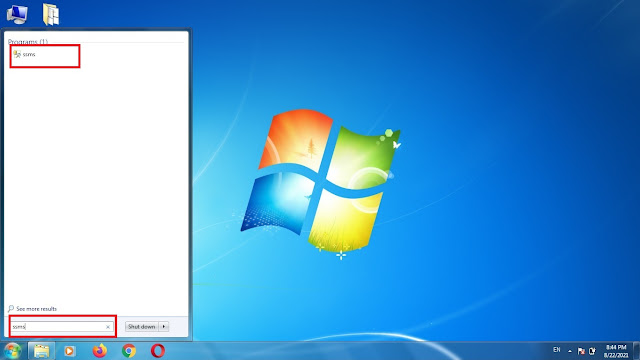
1)Go to start menu and search for SSMS(SQL server management studio) and click on SSMS.

Create database in SQL server

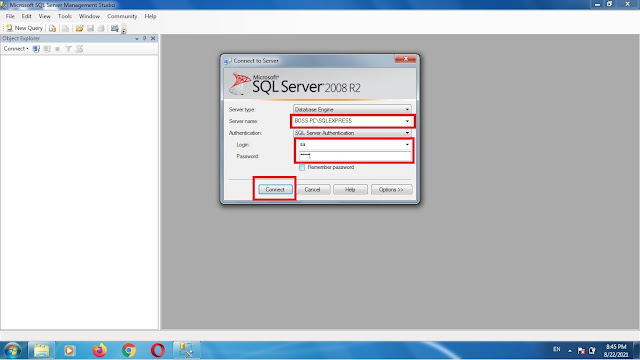
2)Login into SQL server. Select server name then enter username and password. Click on connect button.

Create database in SQL server

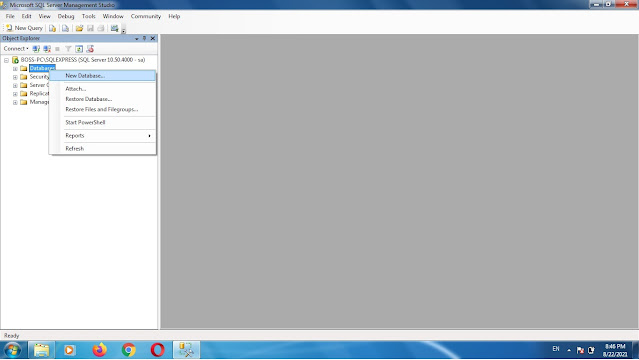
3) Go to object explorer. Right click on database and select new database.

Create database in SQL server

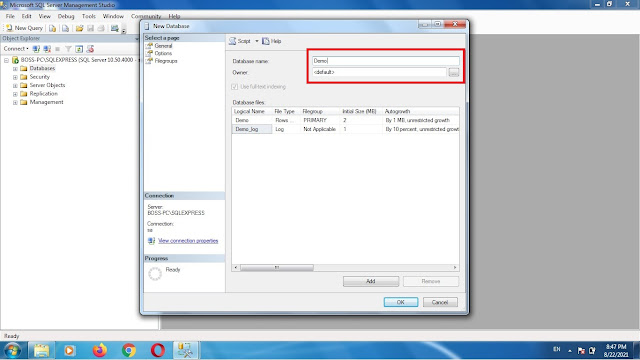
4)Enter database name, then select owner of database.

Create database in SQL server

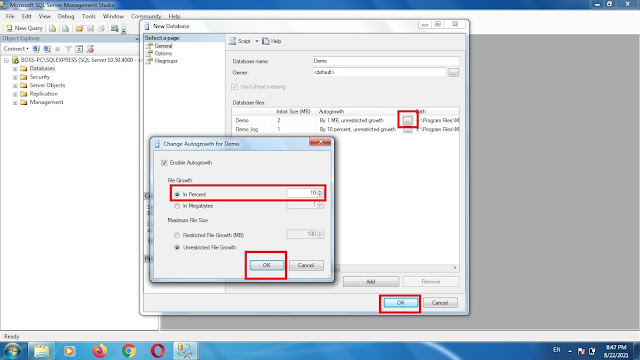
5) You can also change database file names and autogrowth options of database. Then click on ok button.

Create database in SQL server

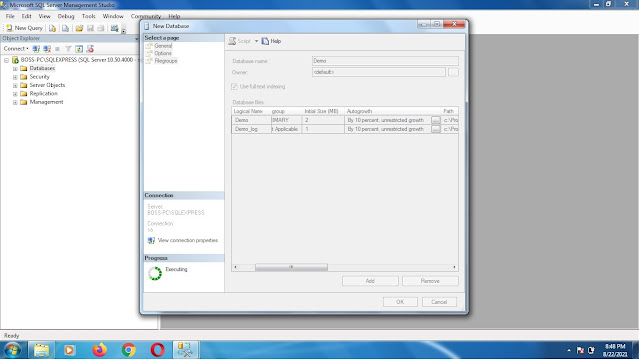
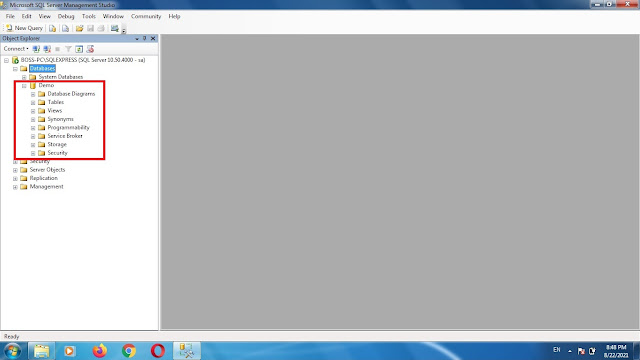
6) Wait for sometime. Within few seconds your SQL server database will be created, as show in below screenshot.

Create database in SQL server

Create database in SQL server


In this way, we can create database in SQL server.