Showing posts with label jQuery Accordion control. Show all posts

Sunday, 22 August 2021

Add, remove and toggle css class using jQuery

Hi guys , in this post we will see how to add, remove and toggle css class using jQuery.  As we know that jquery is library of javascript which can be used to do css manipulation. Let's see it practically.
    In this demo, we will add one paragraph element and three buttons one for adding css class, one for removing css class and one for toggling css class.

Add, remove and toggle css class using jQuery

Please follow below steps:-

 1)Open your editor such as visual studio/notepad.

   2)Add html, head, script and body tag.

   3) Add CDN links for jquery .js files in head tag:-            

<script src="https://ajax.googleapis.com/ajax/libs/jquery/3.5.1/jquery.min.js"></script>  

4) Add one paragraph element and three buttons one for adding css class, one for removing css class and one for toggling css class.

 <p>This is sample text.</p><br/>

  <button Id="btnAddClass">Add Css Class</button>

  <button Id="btnRemoveClass">Remove Css Class</button>

  <button Id="btnToggleClass">Toggle Css Class</button>

 5) Add css class in style section.

   <style type="text/css">
    .SampleText
        {
          color:red;
          font-size:50px;
        }
    </style>
 6) Add following jquery code in script section.

  <script type="text/javascript">
$(document).ready(function(){
$('#btnAddClass').click(function(){
$('p').addClass('SampleText');
});
$('#btnRemoveClass').click(function(){
$('p').removeClass('SampleText');
});
$('#btnToggleClass').click(function(){
$('p').toggleClass('SampleText');
});
});
</script>

In above code, add document ready function to check whether DOM is fully loaded. Then add three click event handler for three buttons. You can use following method to do css manipulation.
   
    addClass() method is use to add css class to html elements.
    removeClass() method is use to remove css class from html elements.
    toggleClass() method is use to toggle css class to html elements.

Full Code:-

<html>

<head>

<style type="text/css">

.SampleText

{

  color:red;

  font-size:50px;

}

</style>

<script src="https://ajax.googleapis.com/ajax/libs/jquery/3.5.1/jquery.min.js"></script>

<script type="text/javascript">

$(document).ready(function(){

$('#btnAddClass').click(function(){

$('p').addClass('SampleText');

});

$('#btnRemoveClass').click(function(){

$('p').removeClass('SampleText');

});

$('#btnToggleClass').click(function(){

$('p').toggleClass('SampleText');

        });

});

</script>

</head>

<body>

  <p>This is sample text.</p><br/>

  <button Id="btnAddClass">Add Css Class</button>

  <button Id="btnRemoveClass">Remove Css Class</button>

  <button Id="btnToggleClass">Toggle Css Class</button>

</body>

</html>

Saturday, 21 August 2021

jQuery Datepicker || How to show calendar control in textbox ?

Hi guys, in this blog post we will see how to show calendar control on focus of textbox. Calendar control is very useful when you want to take date as input from user in your application.So, let's see it practically.

jQuery Datepicker

Please follow below steps:-

   1)Open your editor such as visual studio/notepad.

   2)Add html, head, script and body tag.

   3) Add CDN links for jquery .css and .js files in head tag:-            

    <link rel="stylesheet" href="http://code.jquery.com/ui/1.12.1/themes/base/jquery-ui.css">

    <script src="https://code.jquery.com/jquery-1.12.4.js"></script>

    <script src="https://code.jquery.com/ui/1.12.1/jquery-ui.js"></script>

4) Add one textbox control in body tag.

   Select Date:<input type="text" Id="btnDate">

 5) Add document ready function in script tag.

 6) Find the control by jquery id selector and call datepicker method as:-
    
    $('#btnDate').datepicker();

 7)Set properties 
                changeMonth: true, //to change month on calendar control
        changeYear: true,   // to change year on calendar control
dateFormat:"dd/mm/yy" //To set date format on date.

  So, code will be like this:-

    <script type="text/javascript">
$(document).ready(function(){
$('#btnDate').datepicker({
      changeMonth: true,
      changeYear: true,
  dateFormat:"dd/mm/yy"
});
});
     </script>

Full Code:-

<html>

<head>

<link rel="stylesheet" href="http://code.jquery.com/ui/1.12.1/themes/base/jquery-ui.css">

<script src="https://code.jquery.com/jquery-1.12.4.js"></script>

<script src="https://code.jquery.com/ui/1.12.1/jquery-ui.js"></script>

<script type="text/javascript">

$(document).ready(function(){

$('#btnDate').datepicker({

      changeMonth: true,

      changeYear: true,

      dateFormat:"dd/mm/yy"

});

});

</script>

</head>

<body>

   Select Date:<input type="text" Id="btnDate">

</body>

</html>

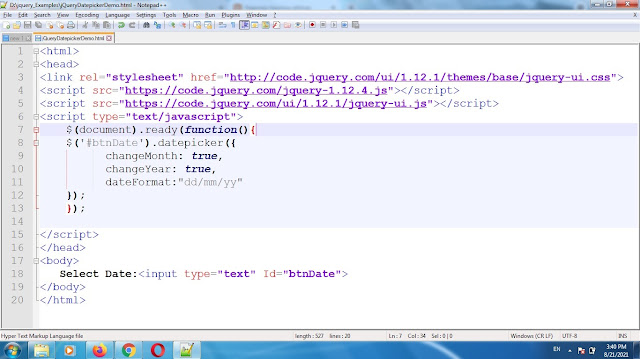
Screenshot of code:-

jQuery Datepicker


jQuery create collapsible content panels || jQuery Accordion control

 Hi guys, in this blog post we will see how to create collapsible content panels  using jquery or how to use jquery accordion control. In application, if you want to show more information on screen in limited space then we can create collapsible content panels using jQuery. Let's see it practically.

    We want to create collapsible content panels as shown in below image:-

jQuery Accordion control

 Please follow below steps:-

   1)Open your editor such as visual studio/notepad.

   2)Add html, head, script and body tag.

            <html>

            <head>

                <script></script>

            </head>

        <body>

        </body>

        </html>

   3) Add CDN links for jquery .css and .js files in head tag:-            

    <link rel="stylesheet" href="http://code.jquery.com/ui/1.12.1/themes/base/jquery-ui.css">

    <script src="https://code.jquery.com/jquery-1.12.4.js"></script>

    <script src="https://code.jquery.com/ui/1.12.1/jquery-ui.js"></script>

 4) Add div in body tags as below:-

<div id="AccordionDiv">

<h1>Div 1</h1>

<div>This is first div.</div>

<h1>Div 2</h1>

<div>

This is second div.</div>

<h1>Div 3</h1>

<div>

This is third div.</div>

<h1>Div 4</h1>

<div>

This is fourth div.</div>

</div>

5) Add following jquery code in script section.

        <script type="text/javascript">

    $(document).ready(function(){

$('#AccordionDiv').accordion();

});

    </script>

  $('#AccordionDiv').accordion(); statement creates collapsible content where AccordionDiv is ID of div.

Full code for demo:-

<html>

<head>

<link rel="stylesheet" href="http://code.jquery.com/ui/1.12.1/themes/base/jquery-ui.css">

<script src="https://code.jquery.com/jquery-1.12.4.js"></script>

<script src="https://code.jquery.com/ui/1.12.1/jquery-ui.js"></script>

<script type="text/javascript">

$(document).ready(function(){

$('#AccordionDiv').accordion();

});

</script>

</head>

<body>

    <div id="AccordionDiv">

<h1>Div 1</h1>

<div>This is first div.</div>

<h1>Div 2</h1>

<div>

This is second div.</div>

<h1>Div 3</h1>

<div>

This is third div.</div>

<h1>Div 4</h1>

<div>

This is fourth div.</div>

</div>

</body>

</html>

Screenshot of code:-

jQuery Accordion control